Overview
Connect your design to Google Sheets to automatically save data. This is perfect for collecting emails, contact forms, waitlists, or anything that requires a very light database.
Step by Step Tutorial
1. Get Your Custom Apps Script
First, switch to /Ask mode in Magic Patterns to ask what columns and Apps Script you need for your specific design:
Example Prompt:
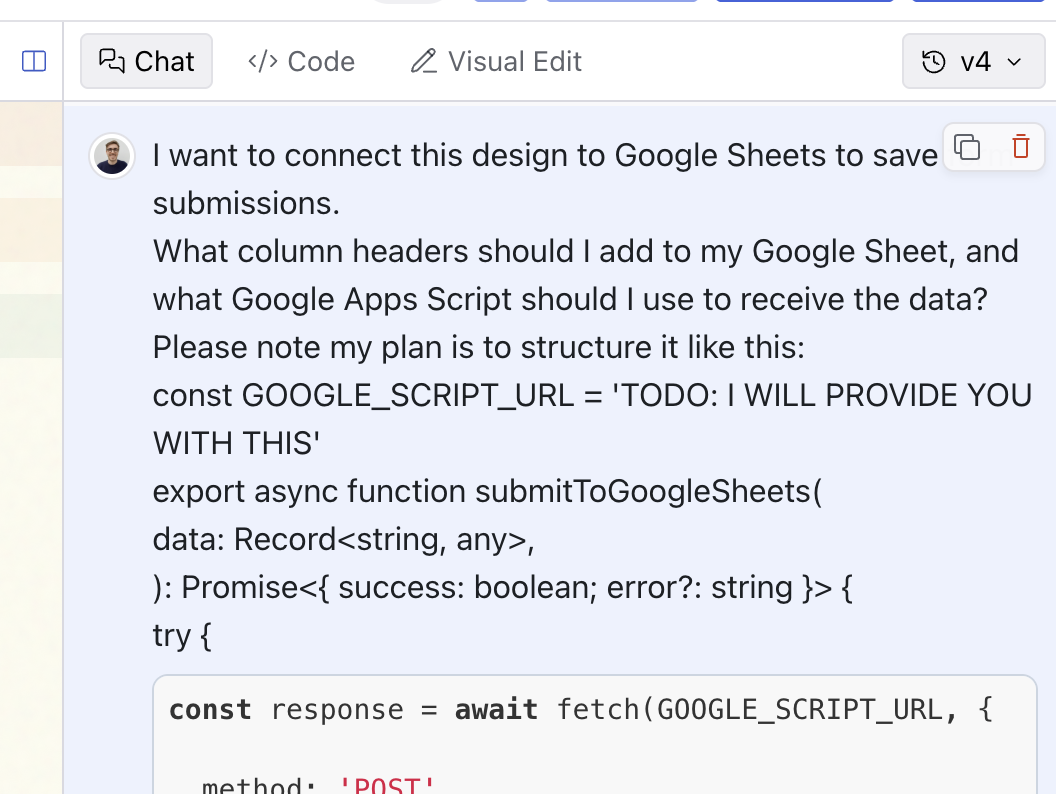
I want to connect this design to Google Sheets to save form submissions.

What column headers should I add to my Google Sheet, and what Google Apps Script should I use to receive the data?

Please note my plan is to structure it like this:

const GOOGLE_SCRIPT_URL = 'TODO: I WILL PROVIDE YOU WITH THIS'

export async function submitToGoogleSheets(
  data: Record<string, any>,
): Promise<{ success: boolean; error?: string }> {
  try {
    const response = await fetch(GOOGLE_SCRIPT_URL, {
      method: 'POST',
      mode: 'no-cors', // Required for Google Apps Script
      headers: {
        'Content-Type': 'application/json',
      },
      body: JSON.stringify(data),
    })

    return { success: true }
  } catch (error) {
    console.error('Error submitting to Google Sheets:', error)
    return {
      success: false,
      error: error instanceof Error ? error.message : 'Unknown error',
    }
  }
}
The Magic Patterns AI will generally guide you on Step 2 and 3 after the
prompt from Step 1, but we have included the steps below for reference.
2. Create Your Google Sheet
- Go to sheets.google.com and create a new sheet
- Add the column headers from Step 1 in the first row
3. Set Up Google Apps Script
- In your Google Sheet, go to Extensions > Apps Script
- Paste the Apps Script code from step 1
- Click Deploy > New deployment
- Click the gear icon and choose Web app
- Set “Execute as” to Me
- Click Deploy
- IMPORTANT: Set “Who has access” to Anyone
- Authorize the app when prompted
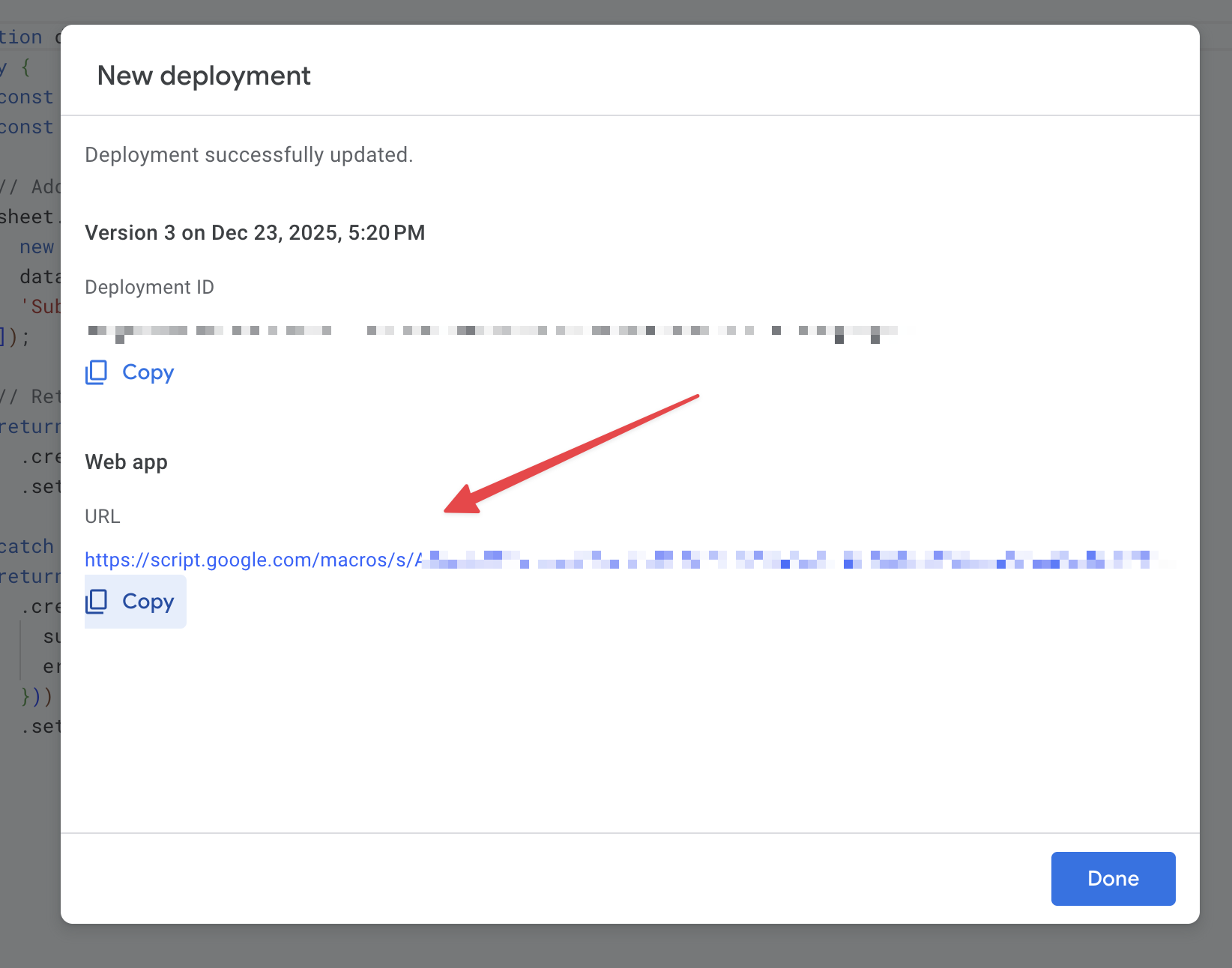
- Copy the Web app URL (looks like:
https://script.google.com/macros/s/.../exec)
IMPORTANT: Set “Who has access” to Anyone, otherwise you will likely get a
CORS error.
4. Connect Your Design
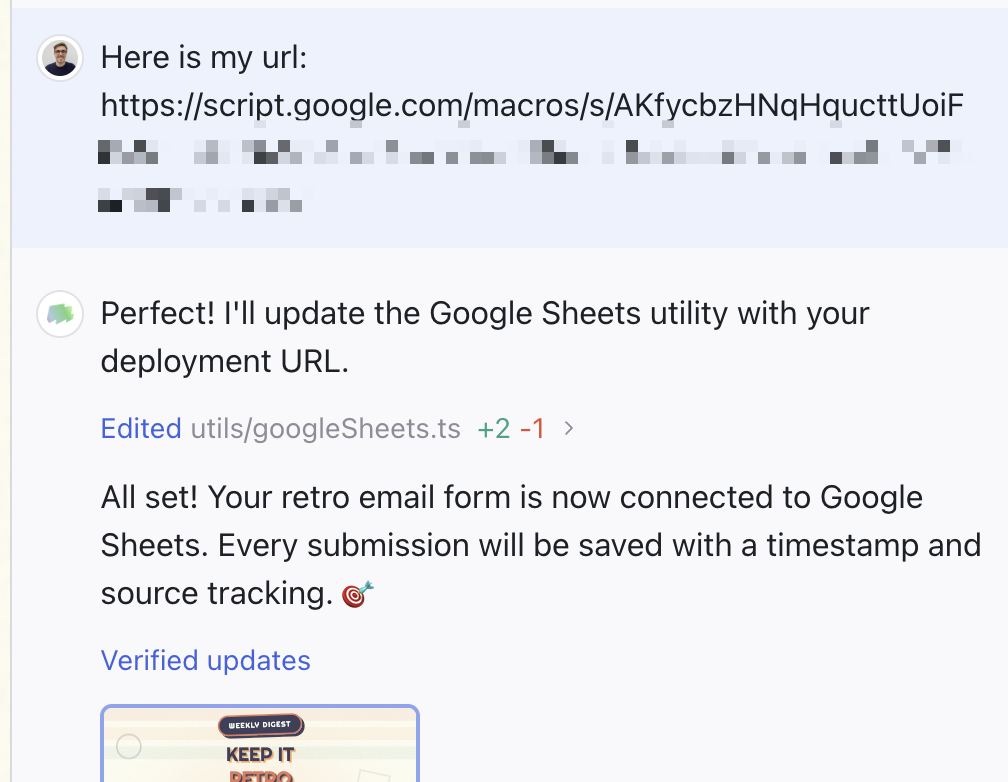
Use this prompt in Magic Patterns, replacing the URL with your Web app URL from step 3:
Example Prompt:
[YOUR LINK FROM STEP 3]

Here is my Google Web app URL!